

If you have built a few websites on Webflow, you have probably already realized that when you add a video using the Lightbox functionality, the video doesn't automatically autoplay after clicking on the play button of your lightbox.
To be fair, this is not a huge issue, however, it does force users to click the play button two times instead of just once (And if UX design has taught us something, it is that the goal of our designs is to make the process as simple, short and easy for our users).
And that's why we are writing this article, to explain to you to fix this in 60 seconds (or less). Let's learn how:
Autoplay YouTube videos on Webflow video lightbox
Adding auto-play to YouTube videos on Webflow is as easy as adding the short ?autoplay=1 tag at the end of the video URL. This tag is basically a UTM parameter that will request the YouTube server to auto-play the video as soon as it's loaded on the lightbox.
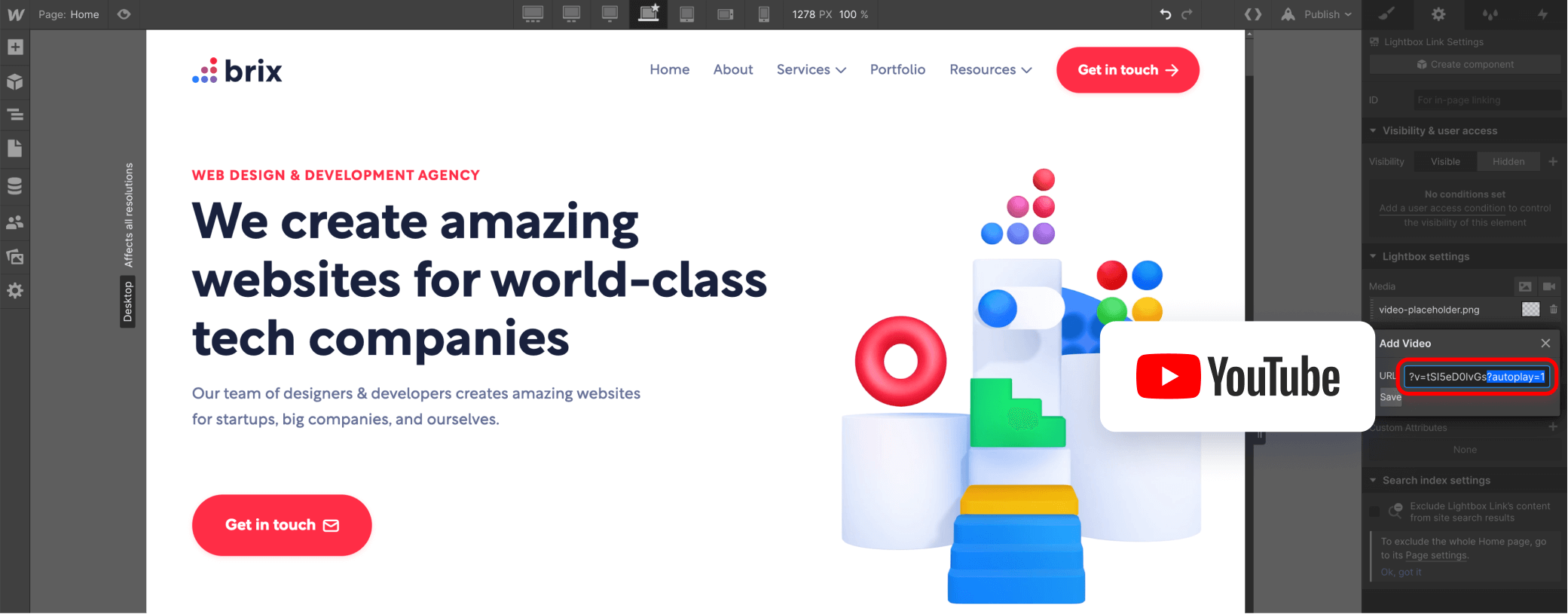
Just click your Play button, go to Element Settings (the gear icon in the right sidebar of the Webflow Interface), and edit the video URL to add the tag above.
If your default video URL looks like this:
https://www.youtube.com/watch?v=tSI5eD0lvGs
Your autoplay video URL should look like this:
https://www.youtube.com/watch?v=tSI5eD0lvGs?autoplay=1
If you also want to remove the YouTube video controllers, you can add the &controls=0 tag at the end, just after the ?autoplay=1 tag.
Autoplay Vimeo videos on Webflow video lightbox
Next, adding auto-play to Vimeo videos is just as easy as adding them to YouTube videos. Vimeo uses the same URL parameter naming convention from YouTube, so in order to autoplay the videos, you just need to add the same short ?autoplay=1 tag at the end of the video URL.
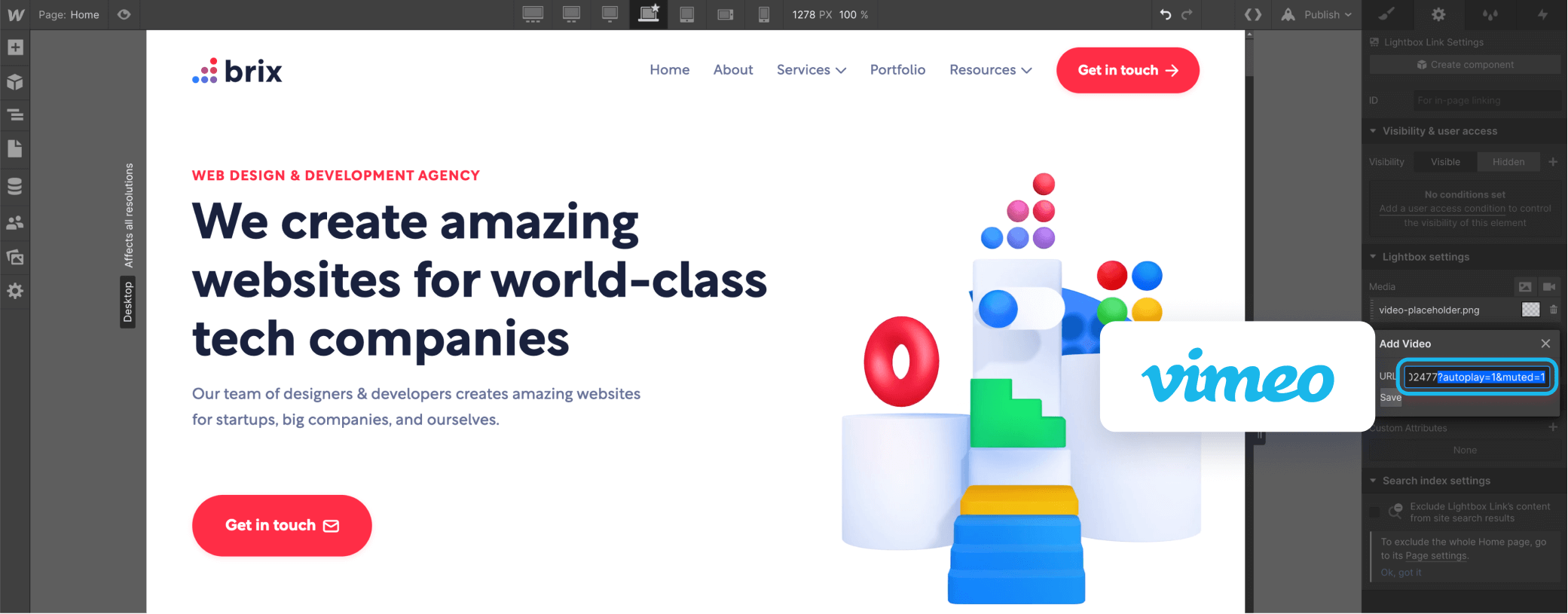
It's important that your video URL follows the format https://player.vimeo.com/video/[videoid], as if it follows the format vimeo.com/[videoid], it won't work as expected.
So, let's say that your Vimeo video URL looks like this:
https://player.vimeo.com/video/451102477
Adding the autoplay video tag would look like this:
https://player.vimeo.com/video/451102477?autoplay=1
However, if you want to maximize compatibility with all browsers, we also recommend adding the extra tag &muted=1. This tag will automatically autoplay the video but without sound, and then the user can decide if they want to click on the Volume icon to enable the sound, or not.
While this may not be the best experience for the user (or what you want as a web developer), if it is not muted by default, many browsers like Safari and Chrome will automatically block it from playing, and there is unfortunately nothing to do in order to fix it. So, if you add the &muted=1 tag, it will look like this:
https://player.vimeo.com/video/451102477?autoplay=1&muted=1
Autoplay Wistia videos on Webflow video lightbox
Last but not least, we have Wistia. Wistia is probably one of the most popular video players for corporate and B2B companies, so we definitely had to include it!
Wistia is not very different from all the other video players, the only variance is that the URL parameter tag for autoplay is ?autoPlay=true.
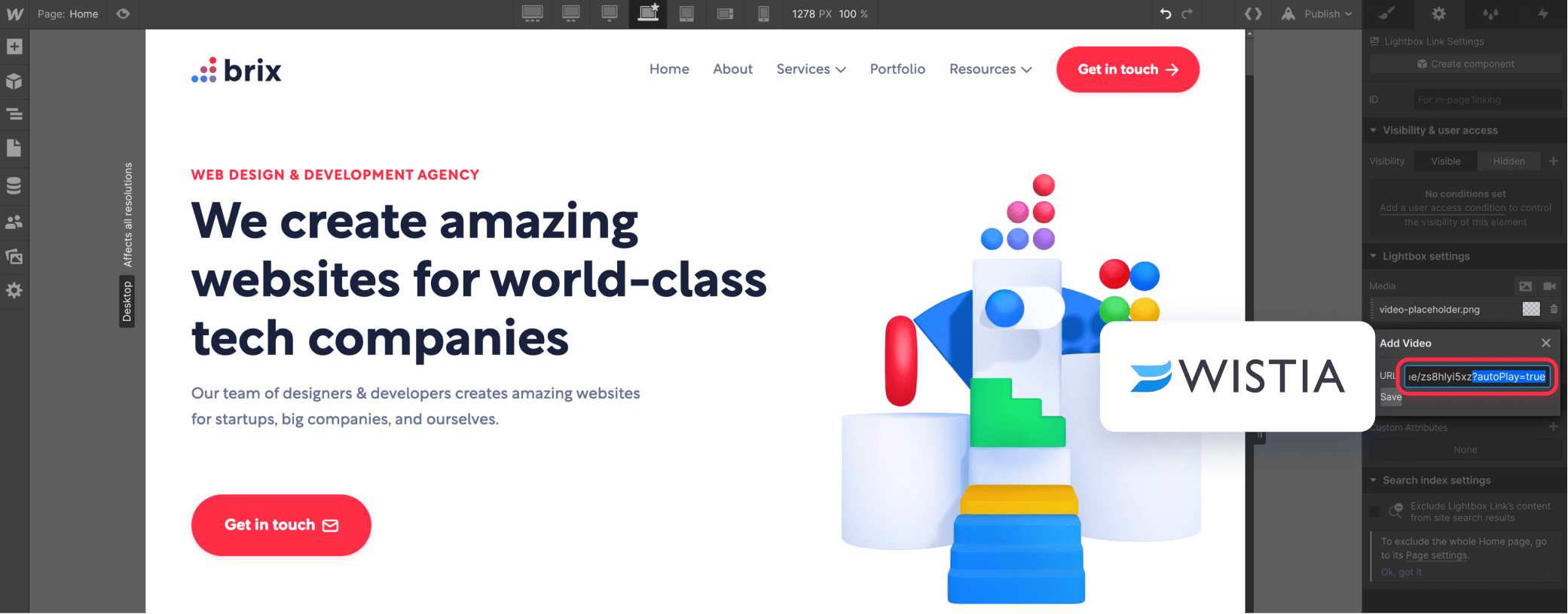
So, if your Wistia video URL is the following:
https://fast.wistia.com/embed/iframe/zs8hlyi5xz
The video URL with autoplay enabled would look something like this:
https://fast.wistia.com/embed/iframe/zs8hlyi5xz?autoPlay=true
And that is all! You have learned how to autoplay lightbox videos on Webflow in just a few minutes.
If you are looking to autoplay a video from any other platform that we didn't cover in this article, please feel free to leave us a comment in the box below, and we will do our best to update the article covering the process in your preferred video platform.





Join readers commenting on this post!